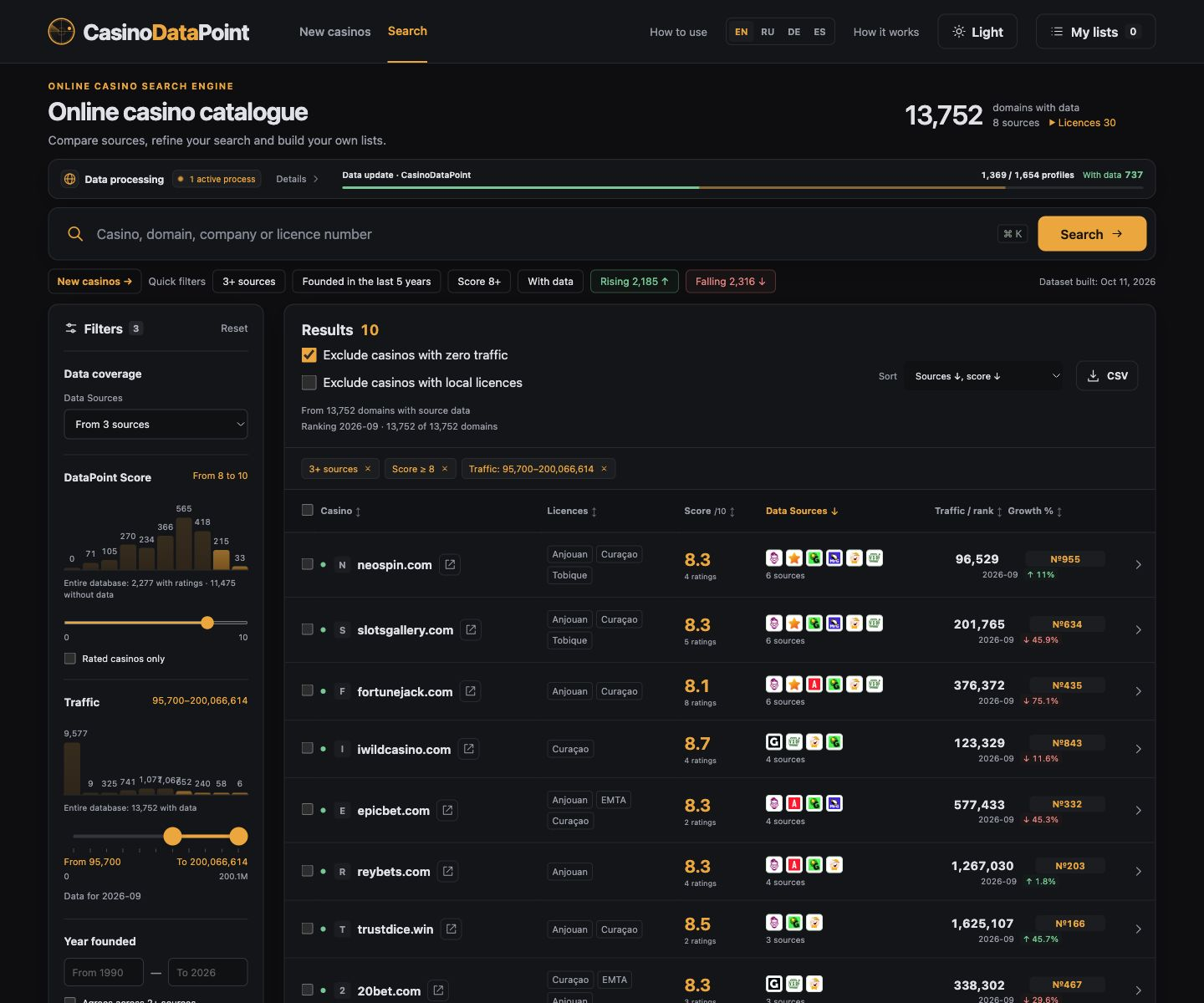
Find casinos with your own criteria
Set your criteria, then compare results. Screenshots show real searches on 12 October 2026; records and counts may change.
Start with a clean search
Click Reset in the filters. Search for a domain or name, or leave the search empty to browse the database. On mobile, open Filters.
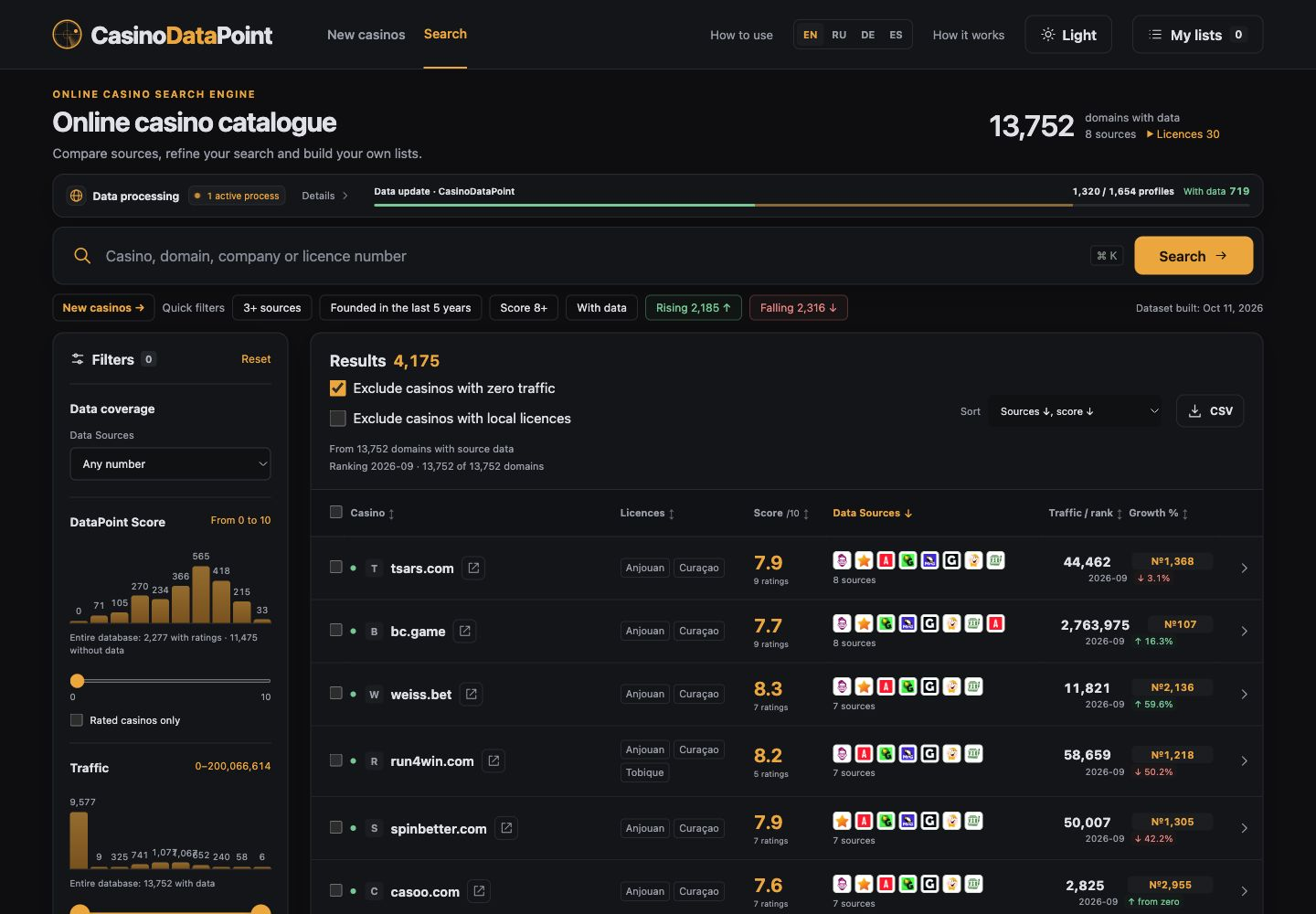
More supporting sources
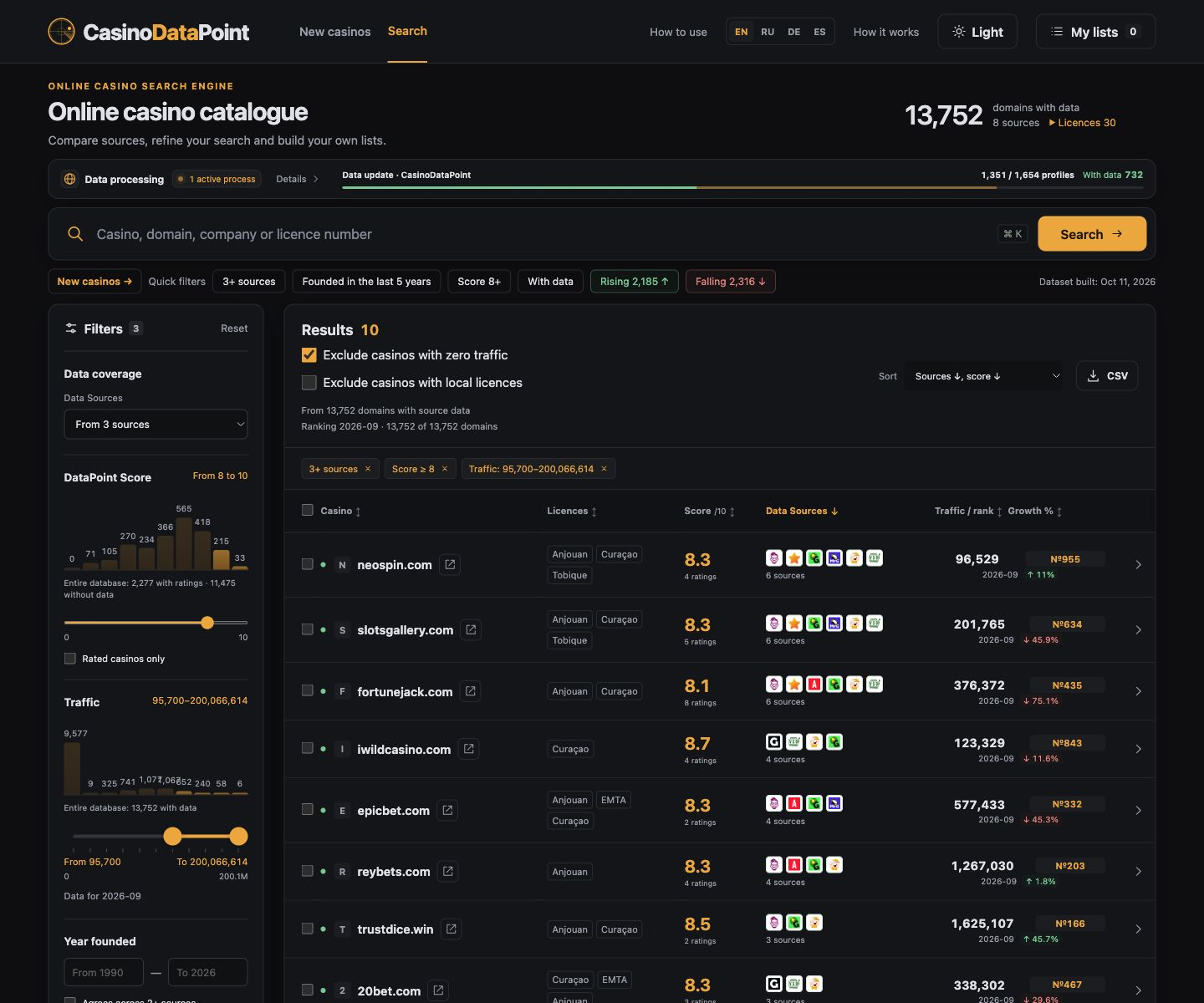
Set Data Sources to at least 3. Choose Data Sources ↓, score ↓ in Order, or click Data Sources. Domains with more supporting independent casino websites appear first.
Source counts refer to independent casino websites. Licences are shown separately.
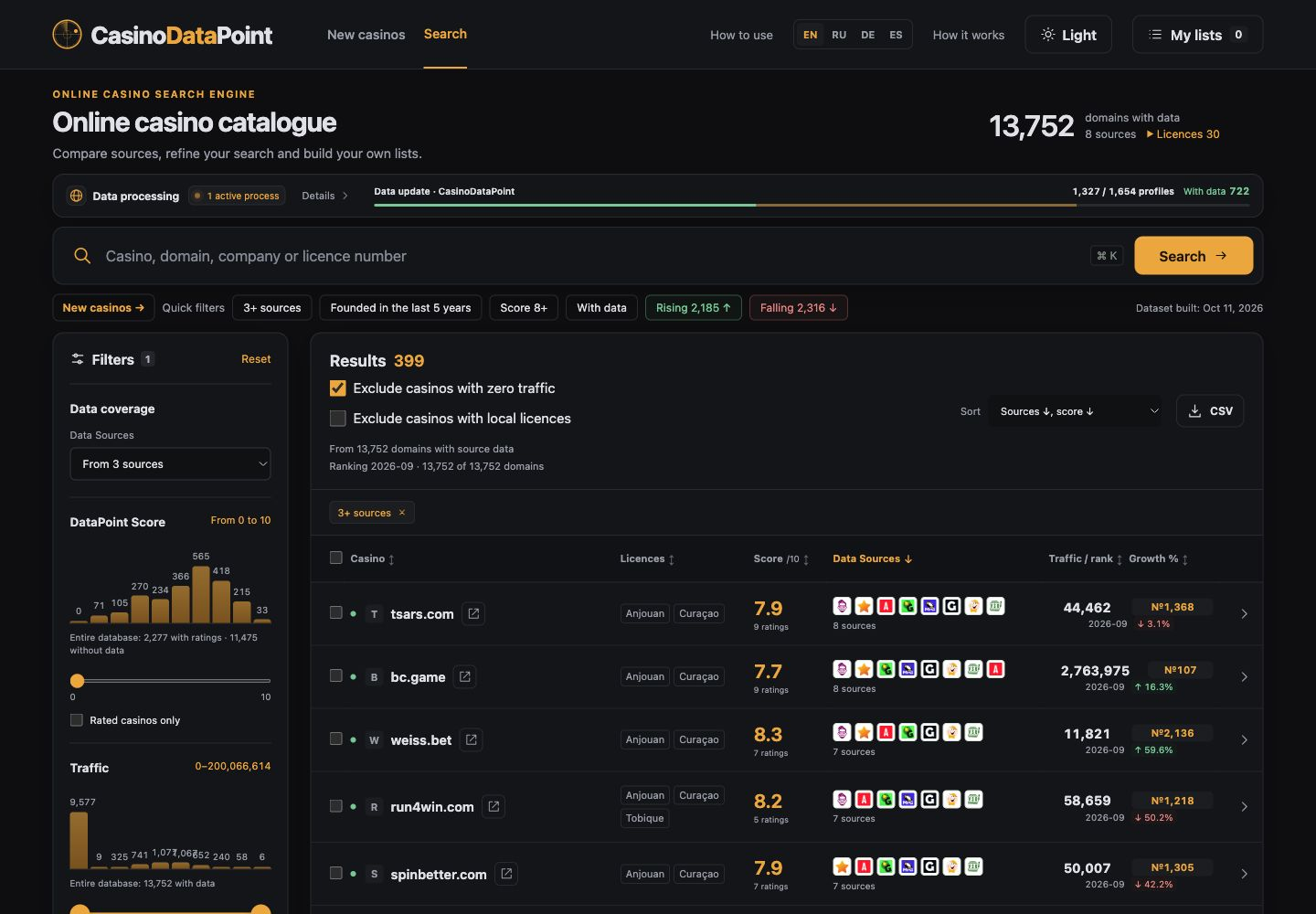
Exclude low scores
Move DataPoint Score to 8 or click the 8–9 distribution bar. Choose Score ↓. Only scores of at least 8 remain; unrated records are excluded by this threshold. The Score 8+ shortcut sets the same minimum.
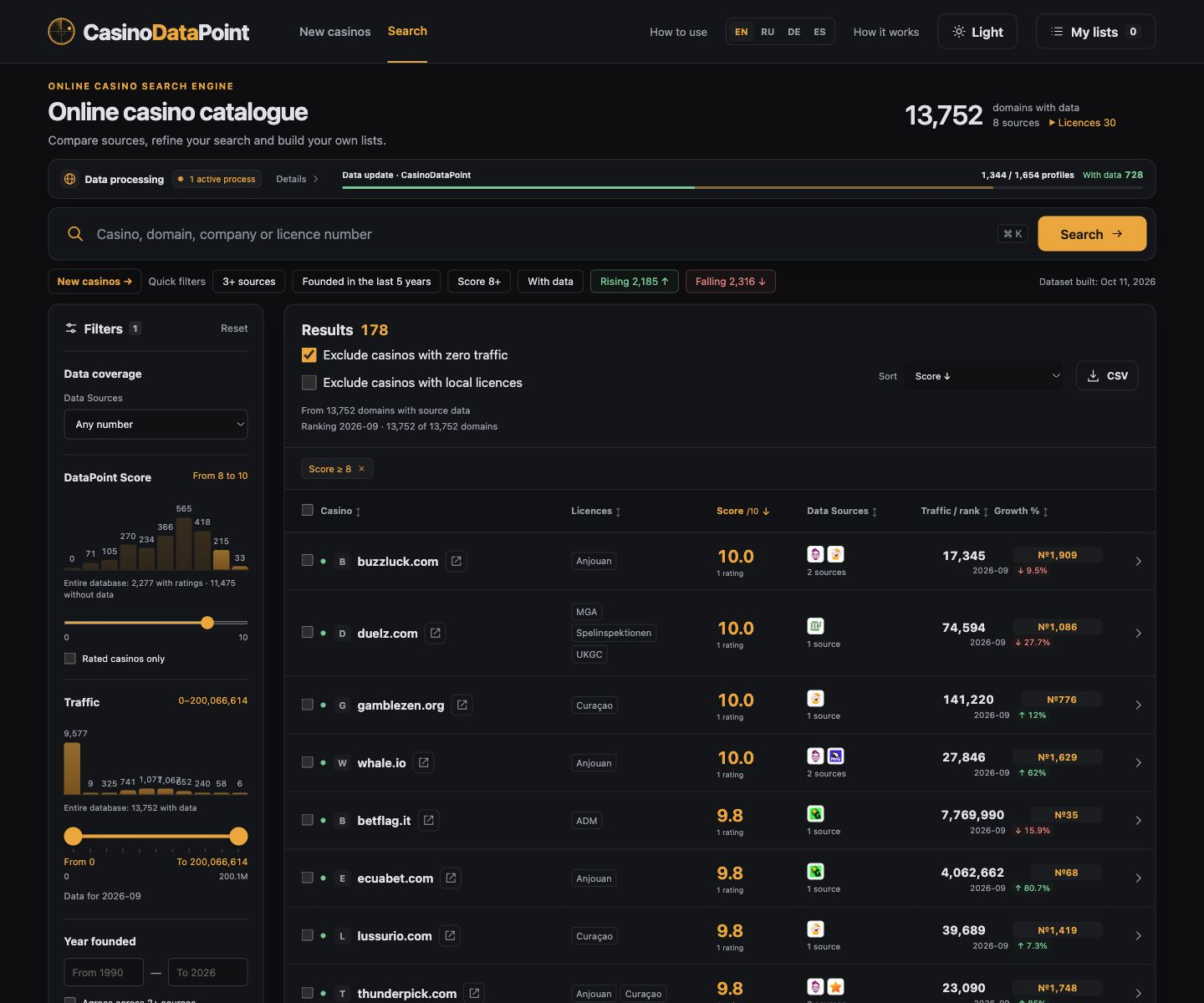
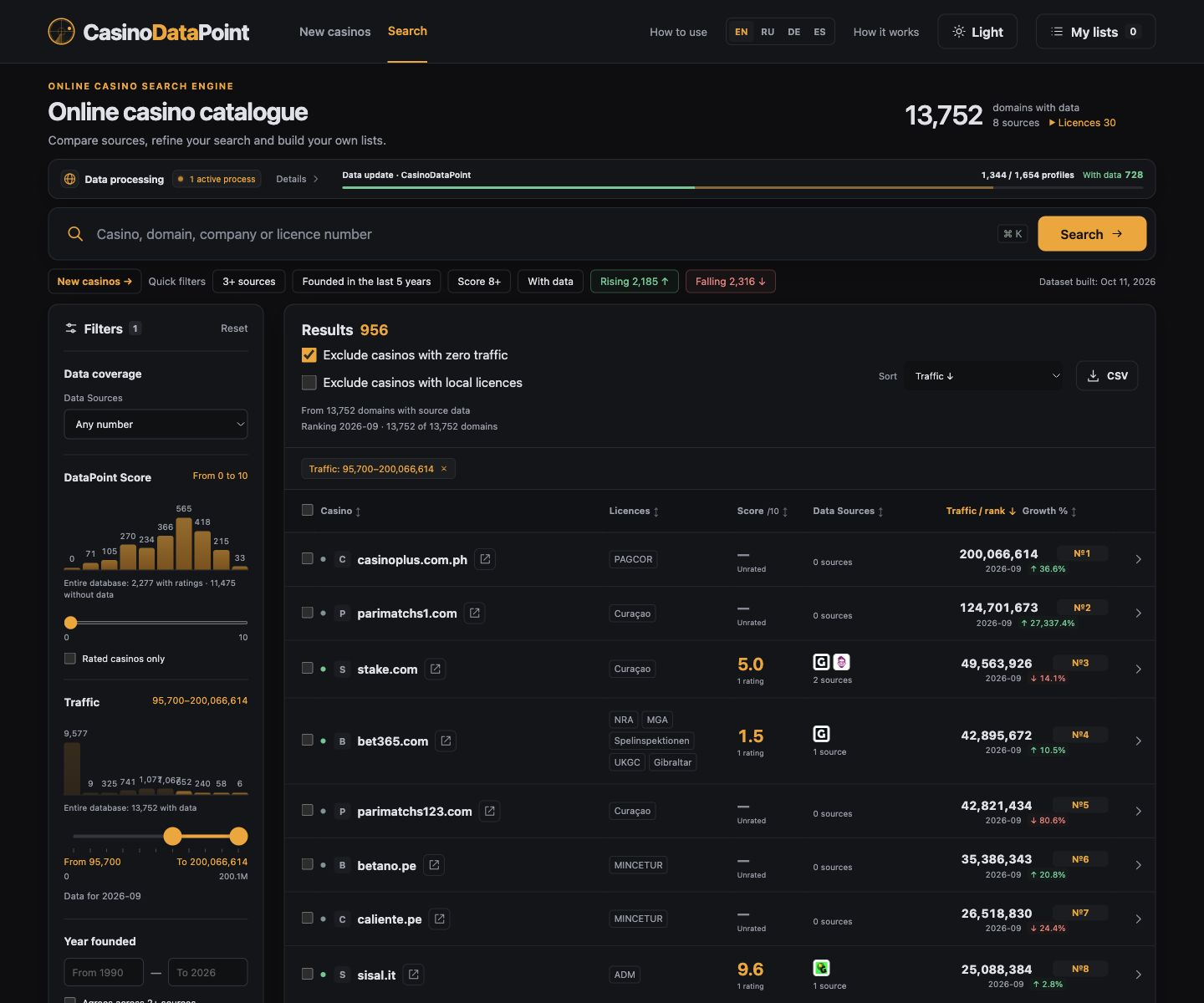
Keep sites with measurable traffic
The lower traffic handle sets the minimum; the upper handle sets the maximum. Try a minimum near 95,700 and leave the maximum unrestricted. Choose Traffic ↓ to show the most visited domains first. The slider snaps to segments; its exact limit is shown below.
Exclude casinos with zero traffic is enabled by default next to the result count. Uncheck it to include zero traffic. Missing traffic is not treated as zero.
Combine conditions
This example combines at least 3 sources AND score at least 8 AND traffic at least 95,700. Filters remove records; sorting orders what remains. Distribution bars describe the whole database, not just this search.
Select a licence
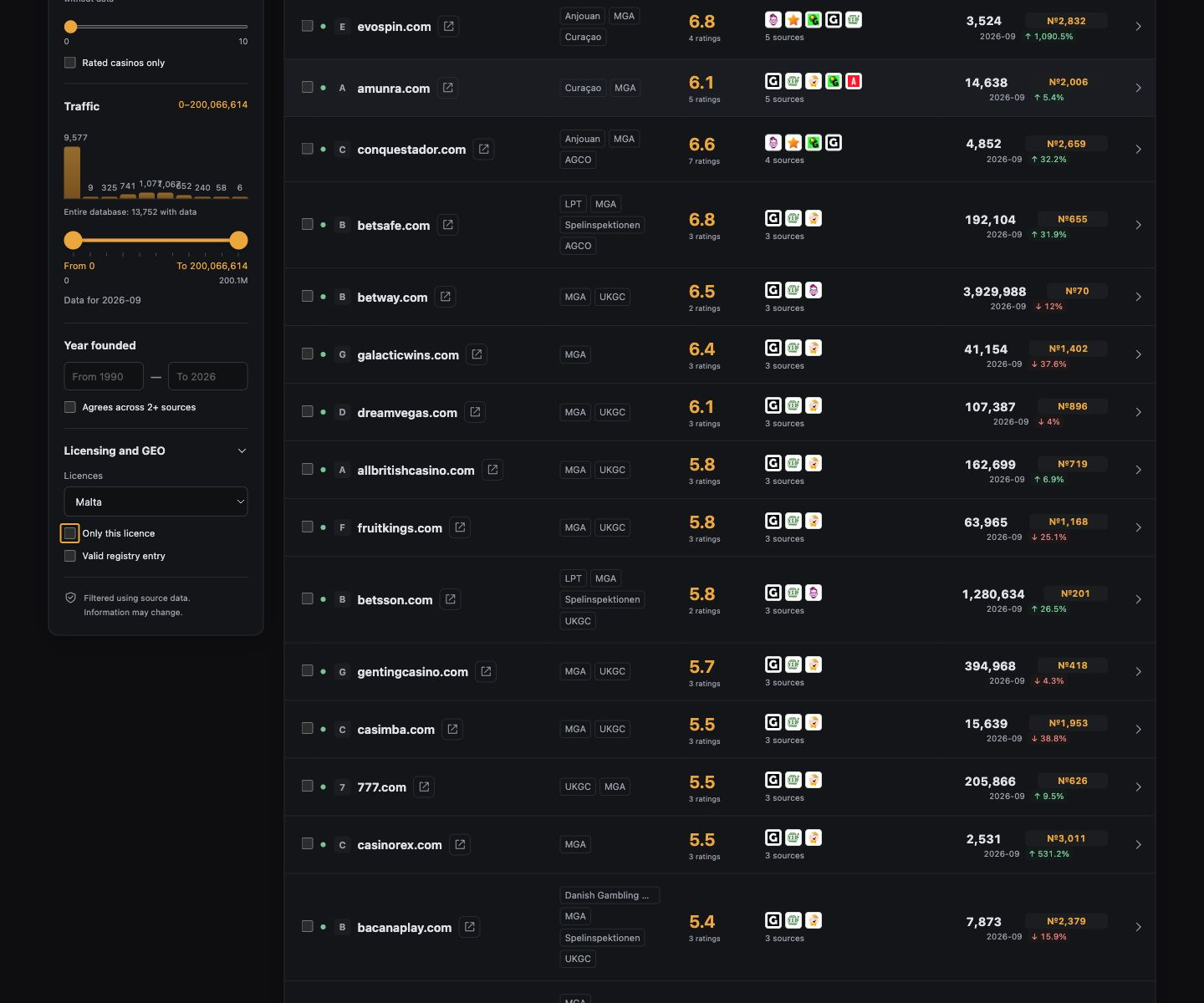
Select a jurisdiction or click a country on the map. Only this licence keeps domains with exactly one recorded jurisdiction matching the selection. All licences clears this restriction. A licence does not establish permission in every country.
Explore growth and profiles
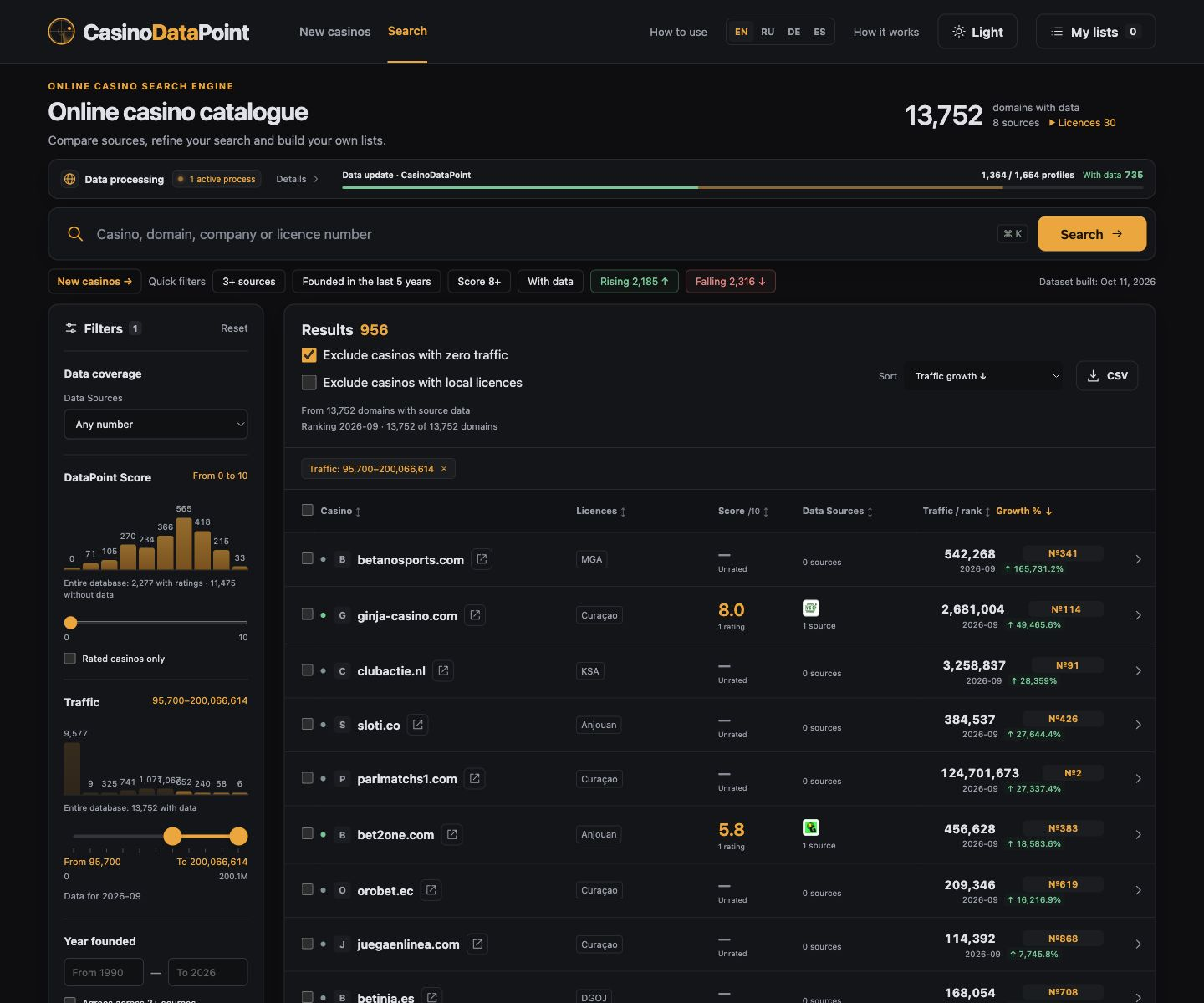
Choose Traffic growth ↓ or Growing. A small starting value can produce a large percentage, so combine growth with a traffic minimum. Open a domain and its full profile to compare ratings, licences, dates and original sources. You can report a non-working casino with an optional comment.
Save your results
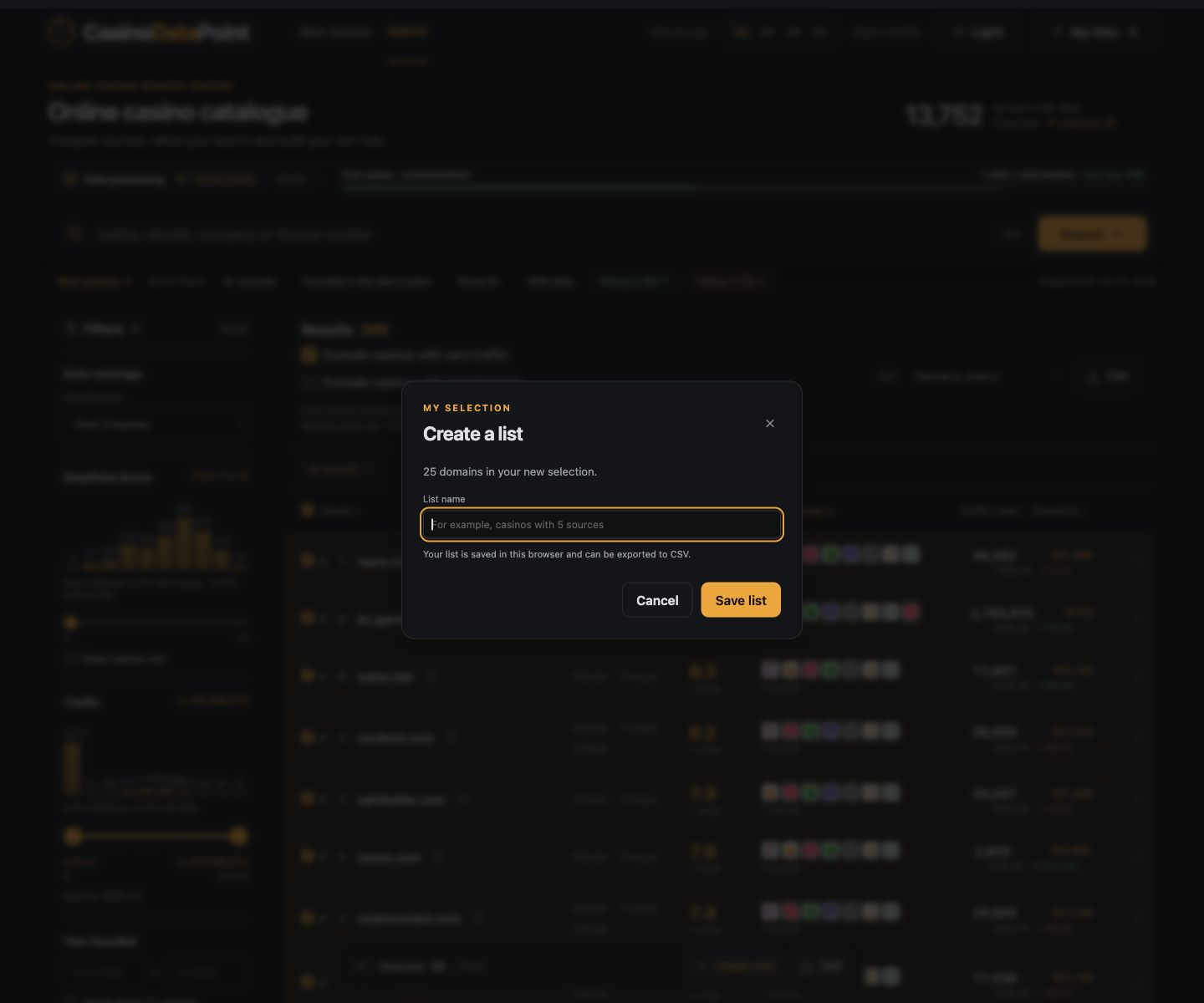
Select rows and save a list; My lists stores it in this browser. CSV exports the current selection. Clicking a column heading toggles its sorting direction.
What does the green dot mean?
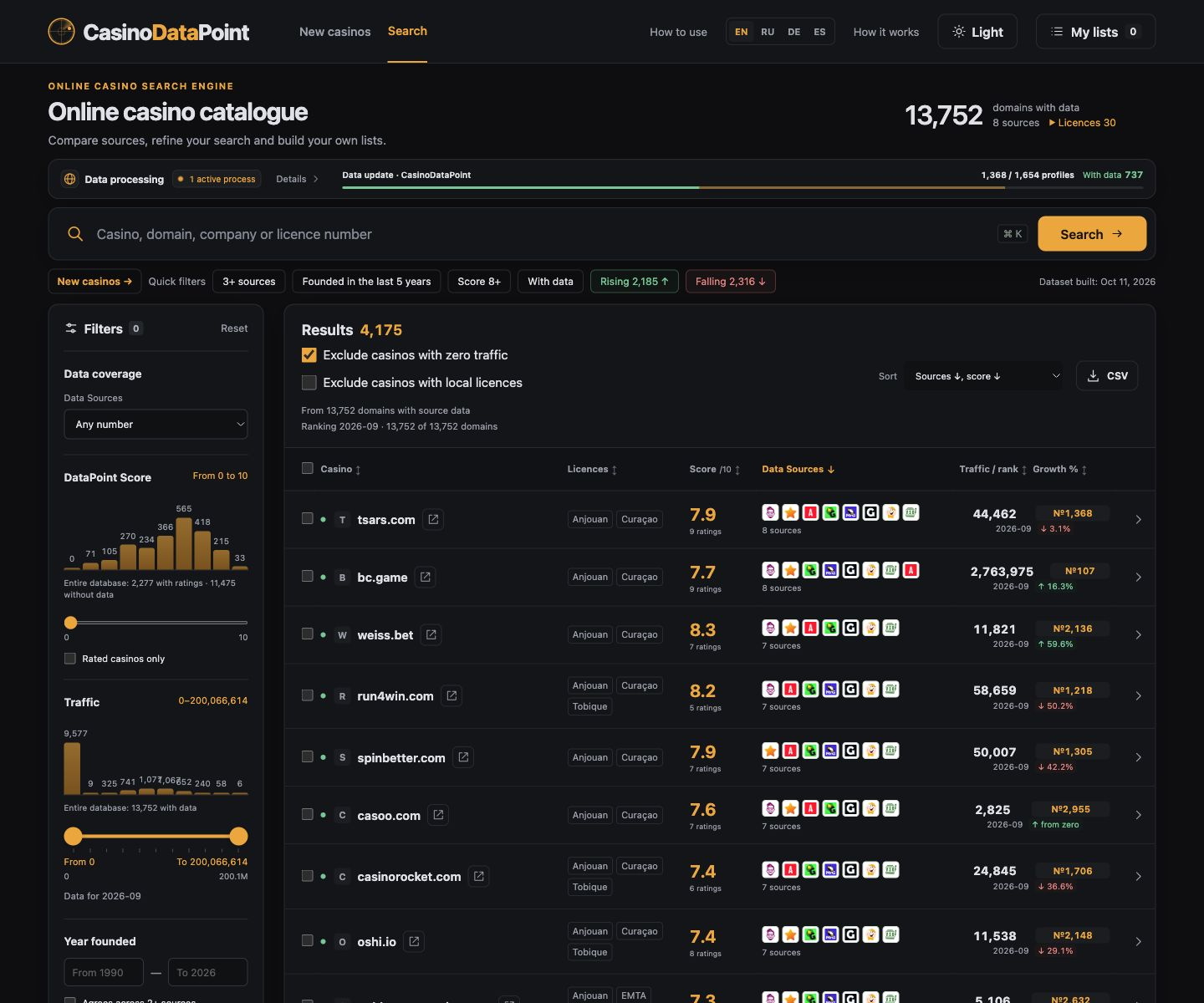
Green means that the domain has a matched Data Source profile. Grey means that no Data Source profile is available. These dots do not indicate live website availability. Hover over the dot for its explanation.
Assess trust using several signals
Compare licences, independent source coverage, ratings and observation dates. Traffic measures popularity, not safety. Ratings and source counts are not guarantees. Example thresholds are search settings, not automatic quality certificates.